
PingBell for Grok
Free Digital Signage for Any TV, Made with Grok
Need a menu, price list, class schedule or holiday hours on the TV at your business? Add PingBell to Grok and tell it what the board should say. It builds the board, and your TV shows it in seconds. No account, no design work and no cost.
How to add PingBell to Grok
You do this once. PingBell has one address, and it needs no sign-in, headers or keys:
https://my.pingbell.io/mcp
- Go to grok.com/connectors.
- Choose New Connector, then Custom.
- Name it PingBell, paste the address above, and choose Add Connector.
How to put a board on your TV with Grok
- Ask. Tell Grok what the board should say. It picks a ready-made board and style and adds your words.
- Open the screen. On your TV, open the free PingBell app, or go to my.pingbell.io/pair in any browser and leave it open, full screen. The screen shows a six-character code.
- Read the code to Grok. Your board appears on the screen right away. You can skip the QR code on the screen: it’s for PingBell accounts.
Want to change something? Just ask, and the screen updates by itself.
What to ask Grok to put on your TV
Give it all your items or lines: a line you don’t set keeps its sample words.
Menus and signs for cafes, bars and shops
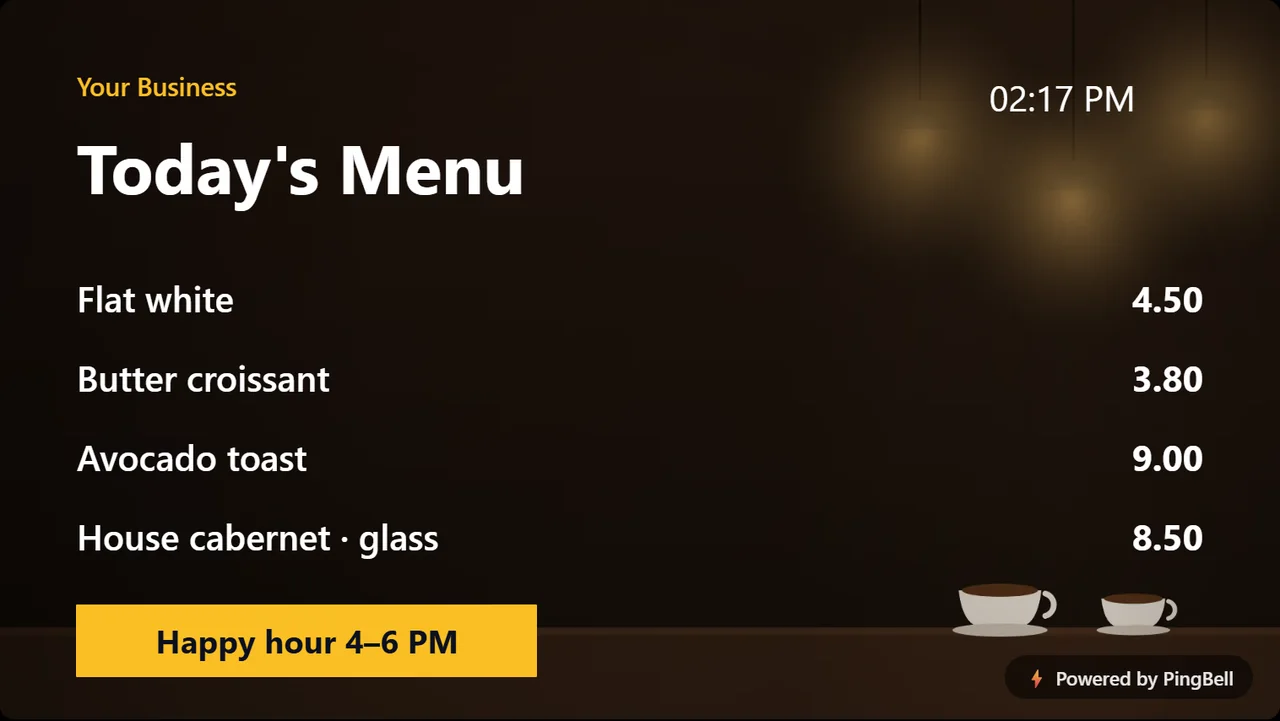
- “Make a menu for my cafe: latte $5, cappuccino $5, drip coffee $3, croissant $4”
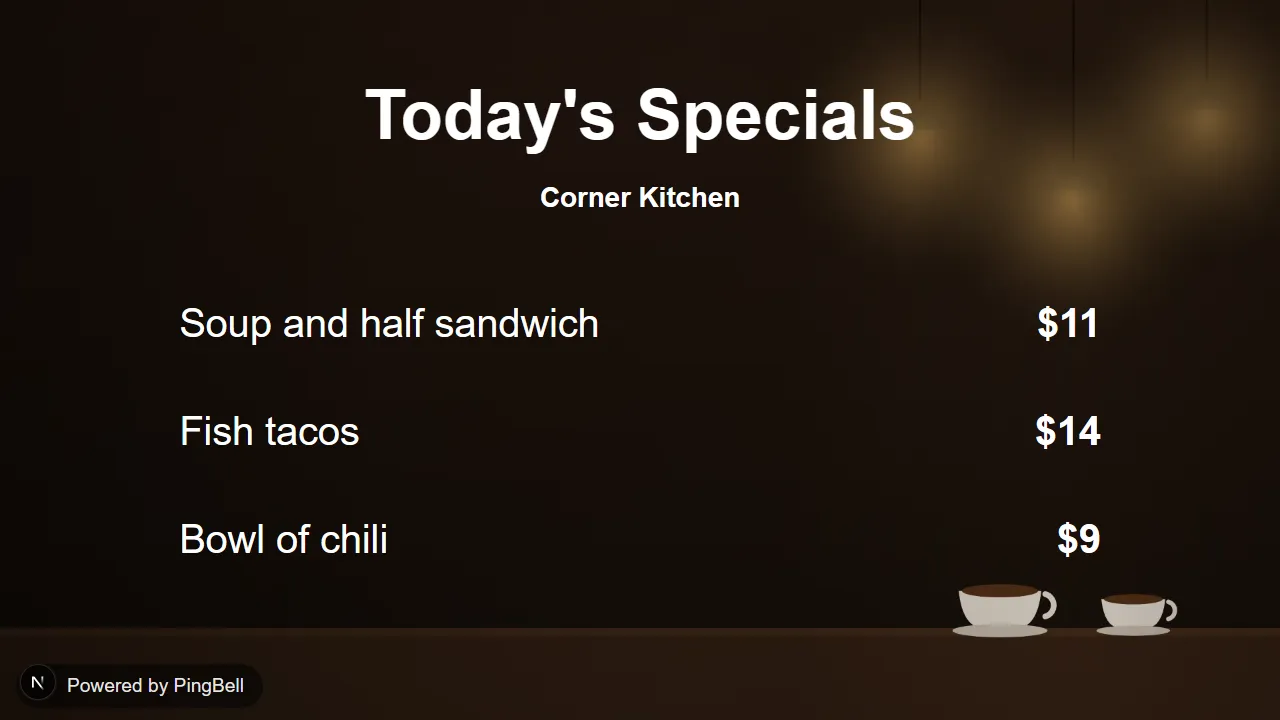
- “Show today’s specials: soup and half sandwich $11, fish tacos $14, chili $9”
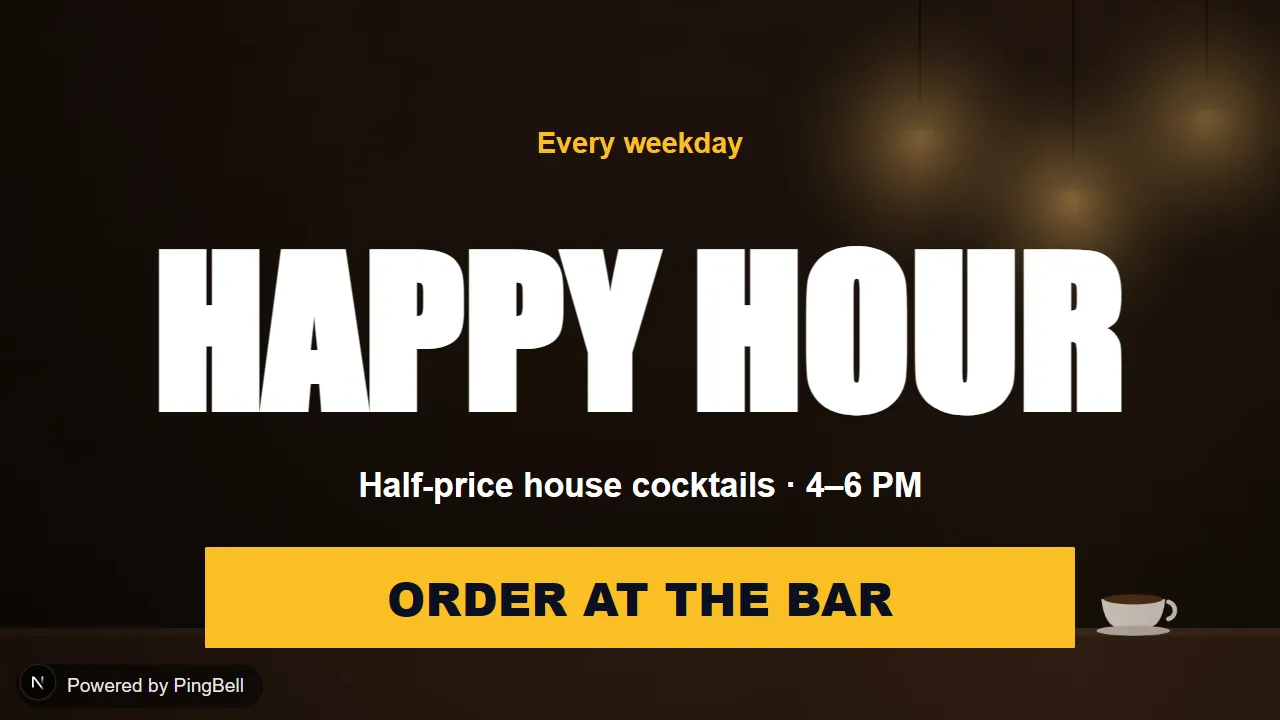
- “Put a happy hour sign on the TV behind the bar, 4 to 6 every weekday”
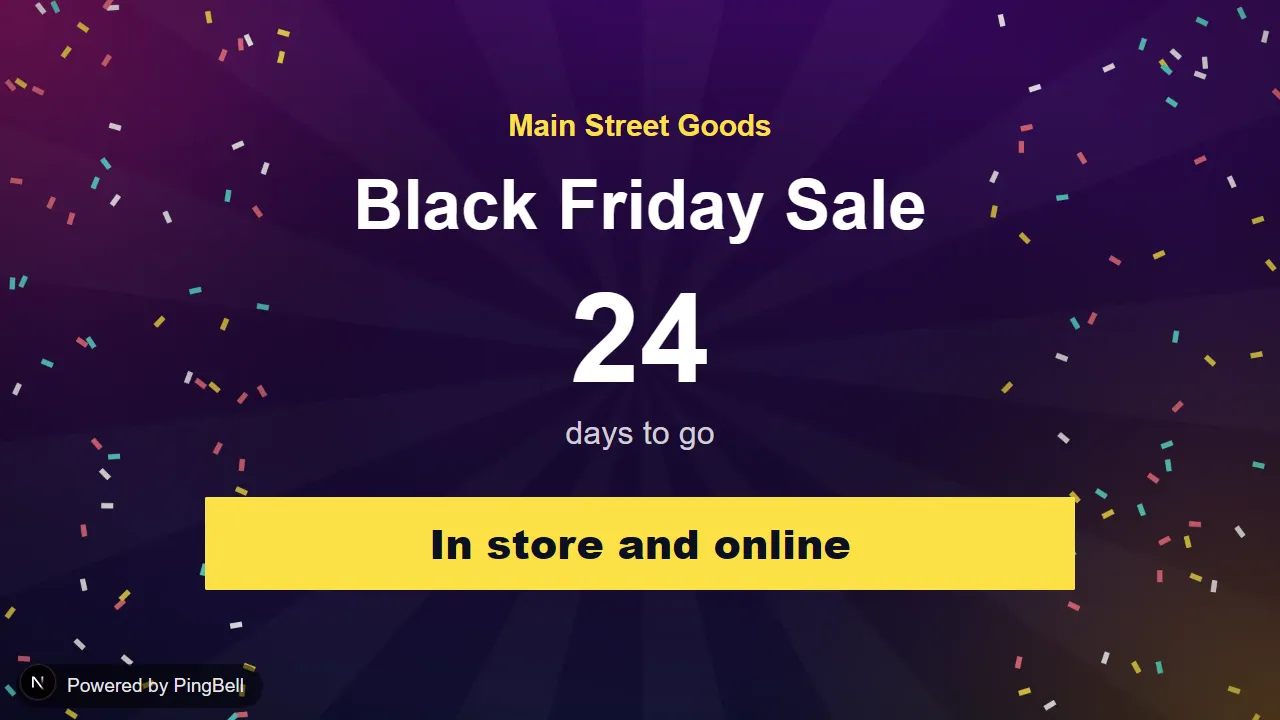
- “Make a Black Friday sale sign that counts down the days left”
- “Put a buy one, get one half price sign on the TV by the register”
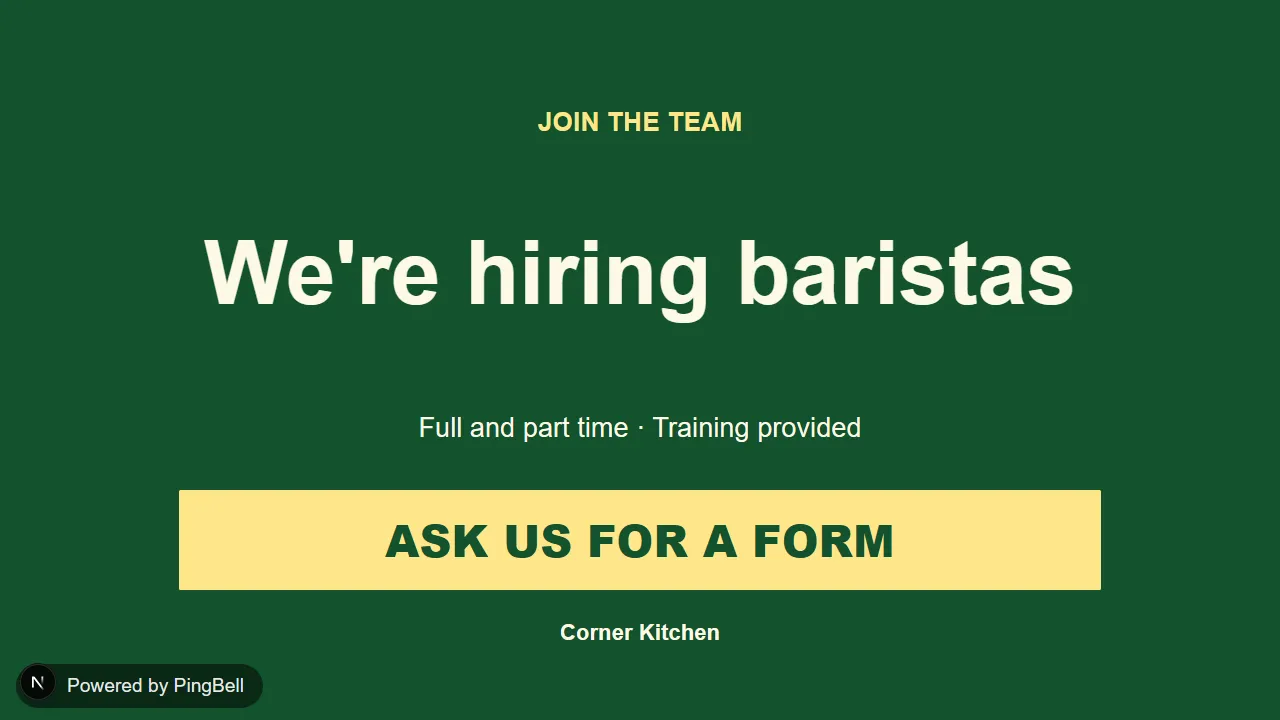
- “Tell customers we’re hiring, and to ask at the counter”
Price lists and schedules for salons, gyms and studios
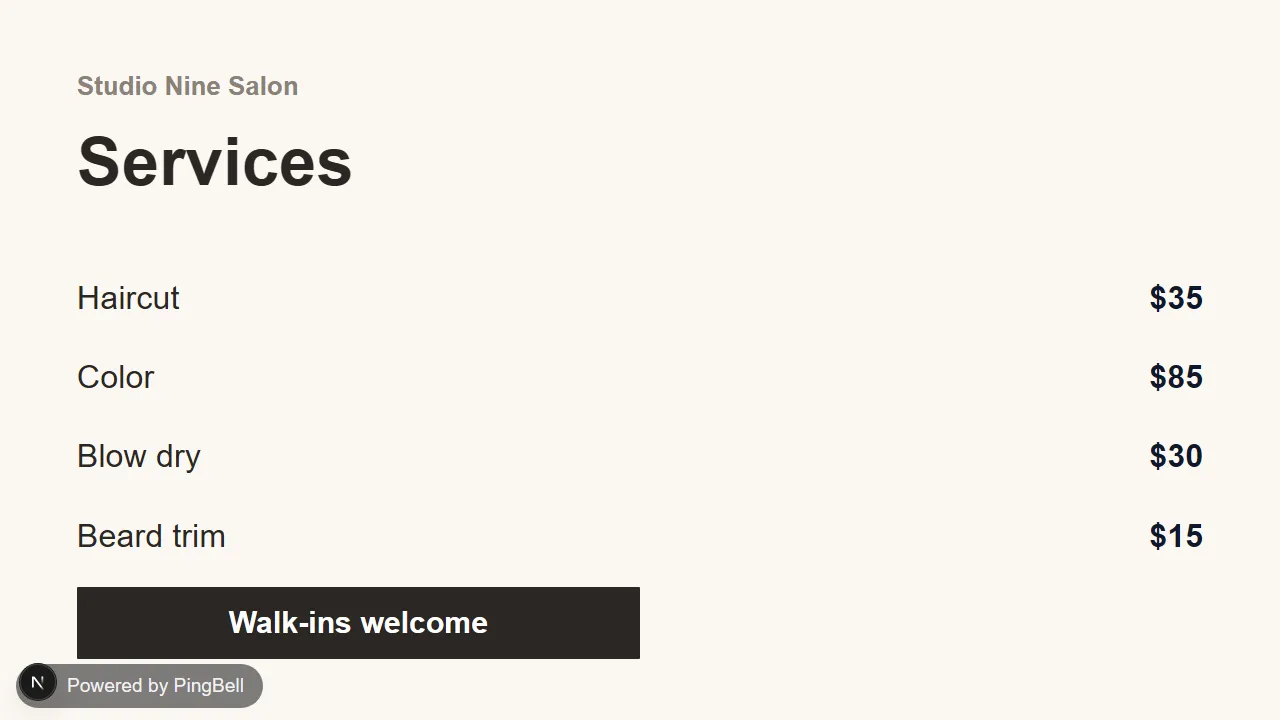
- “Show my salon’s prices: haircut $35, color $85, blow dry $30, beard trim $15”
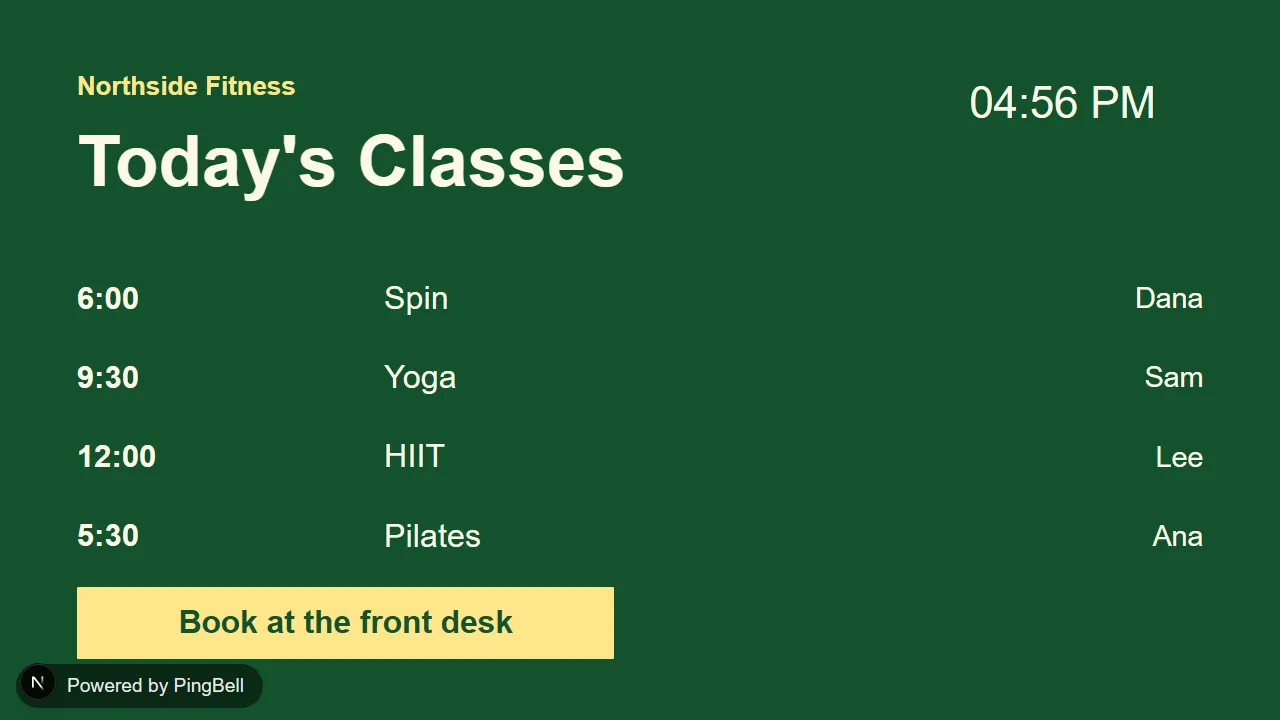
- “Show today’s classes: 6:00 spin with Dana, 9:30 yoga with Sam, noon HIIT with Lee, 5:30 pilates with Ana”
- “Make a refer a friend board: give $20, get $20”
- “Make an employee of the month board for Alex Morgan, three years with us”
Notices and welcome screens for offices, clinics and lobbies
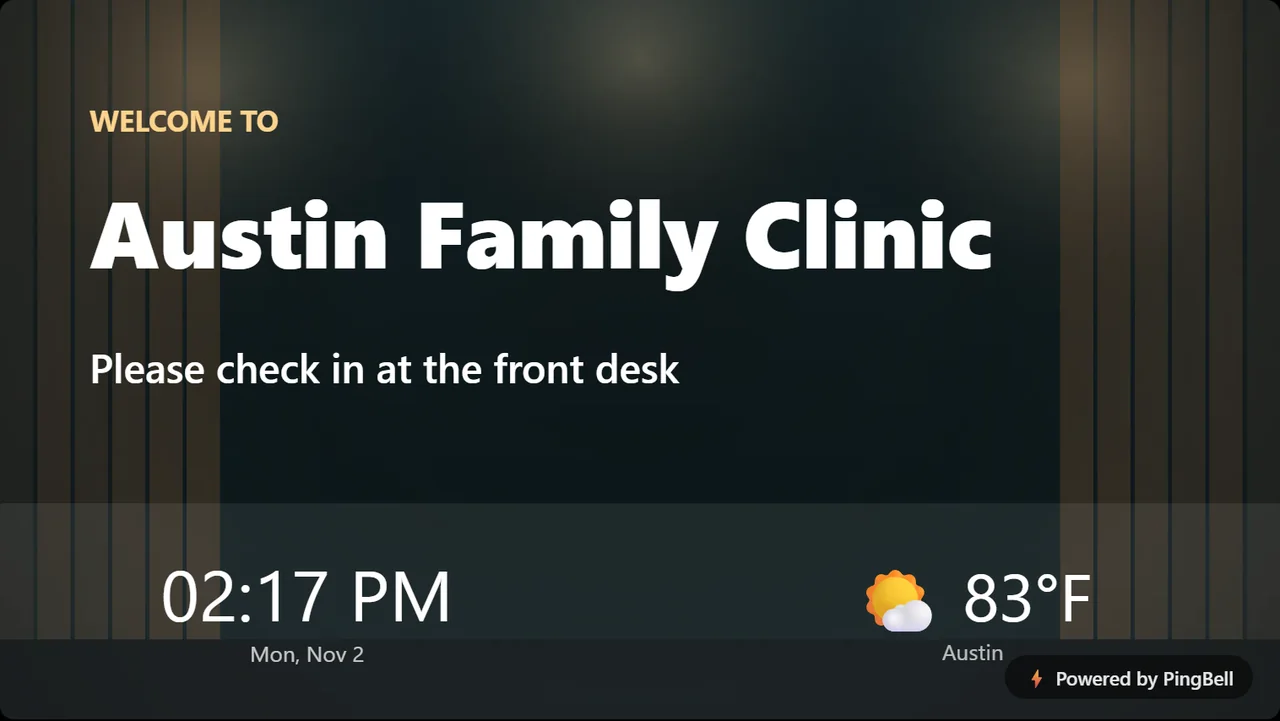
- “Make a welcome board for my clinic with the weather in Austin”
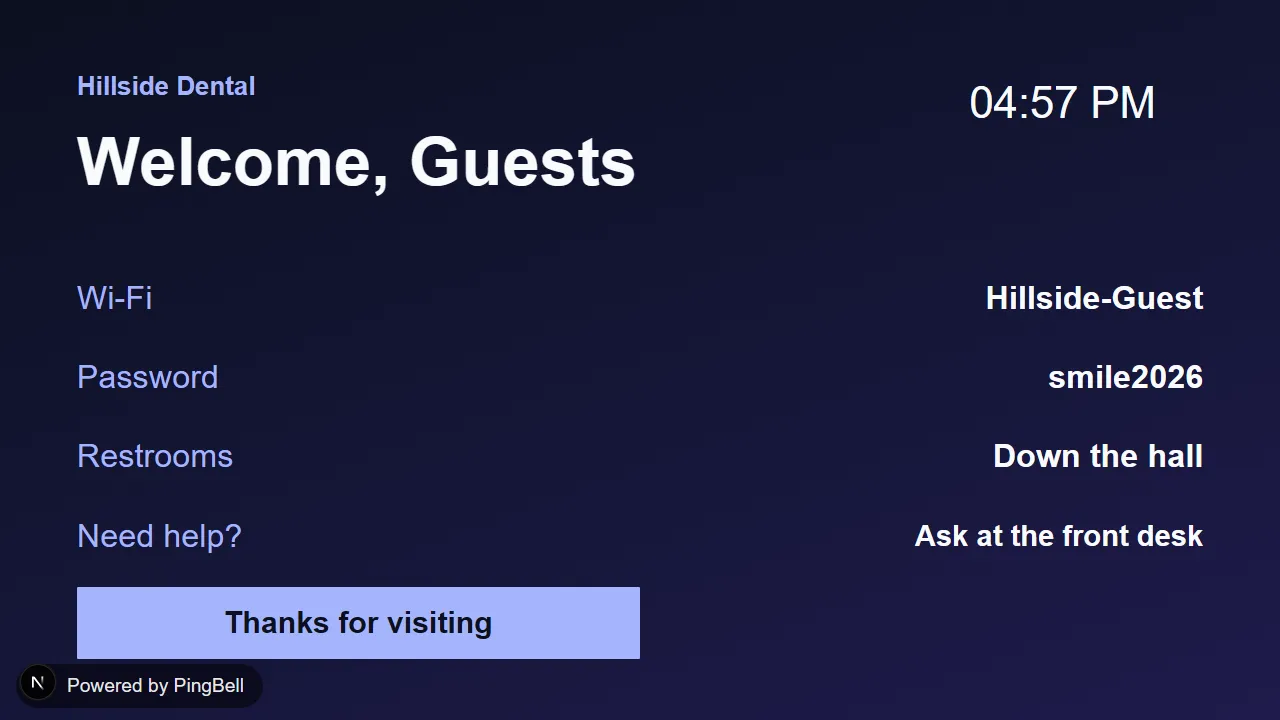
- “Put our guest Wi-Fi name and password on the lobby TV”
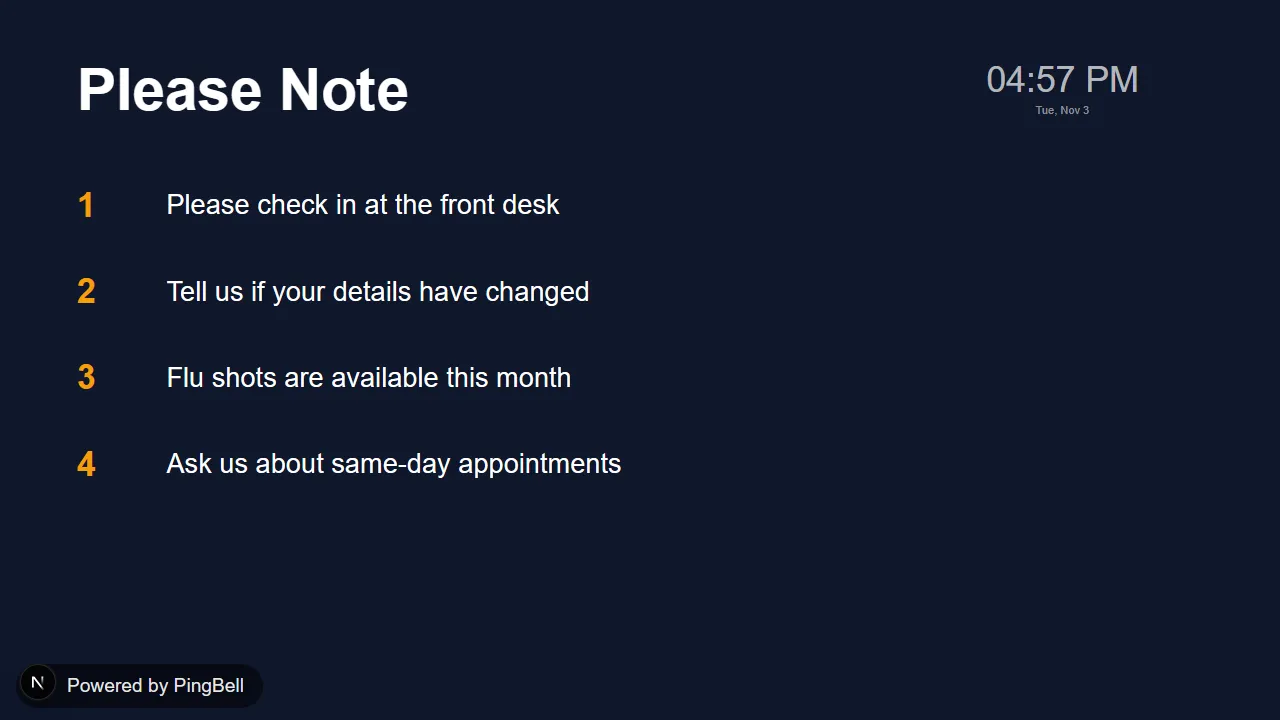
- “Put four notices on the waiting room TV, starting with “Please check in at the front desk””
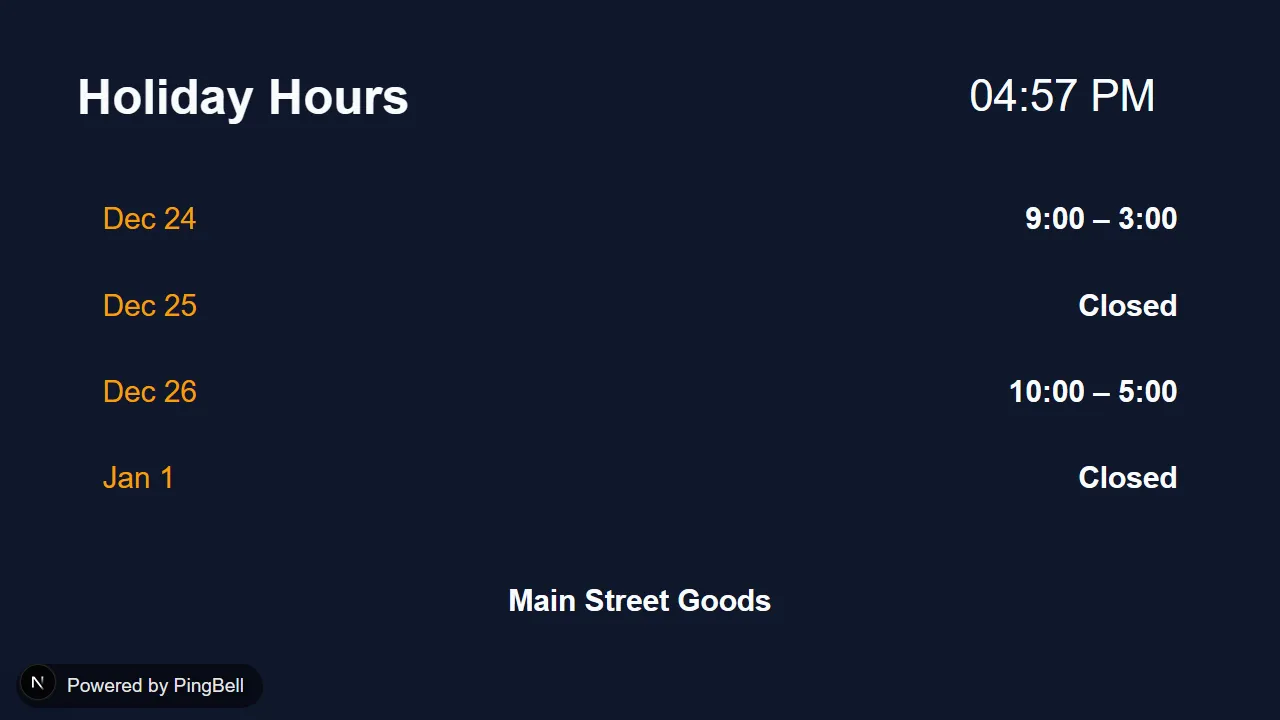
- “Post our holiday hours: Dec 24 9 to 3, Dec 25 closed, Dec 26 10 to 5, Jan 1 closed”
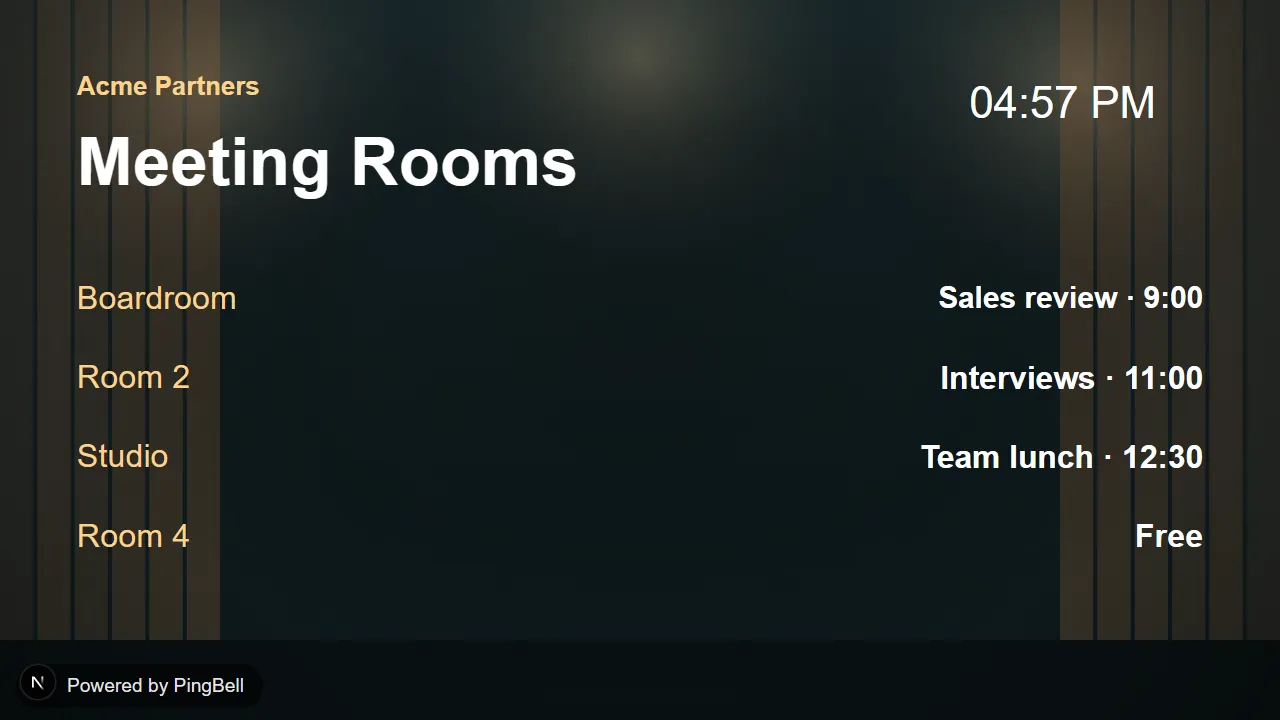
- “Show who has which meeting room today”
- “Announce the all-hands meeting on Friday at 10 on the office TV”
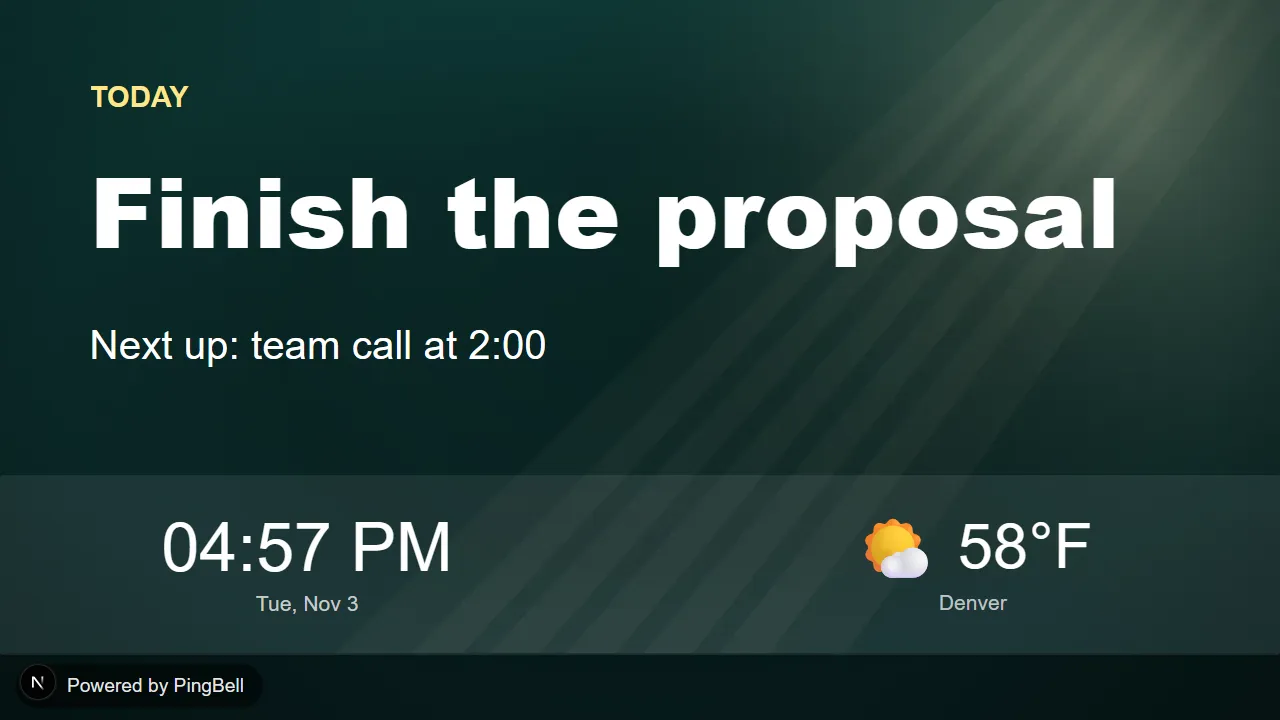
- “Put the time, the weather in Denver and today’s focus on the screen by my desk”
Hallway screens for schools and churches
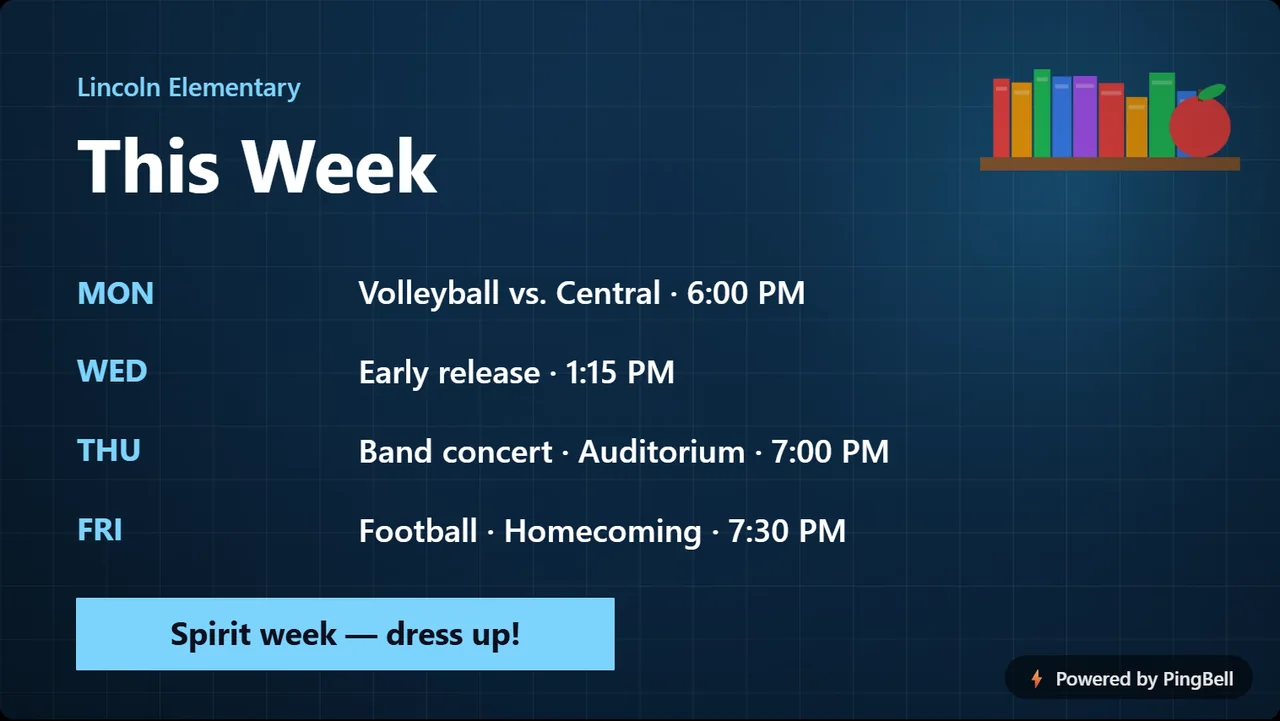
- “Show this week’s school events on the hallway TV”
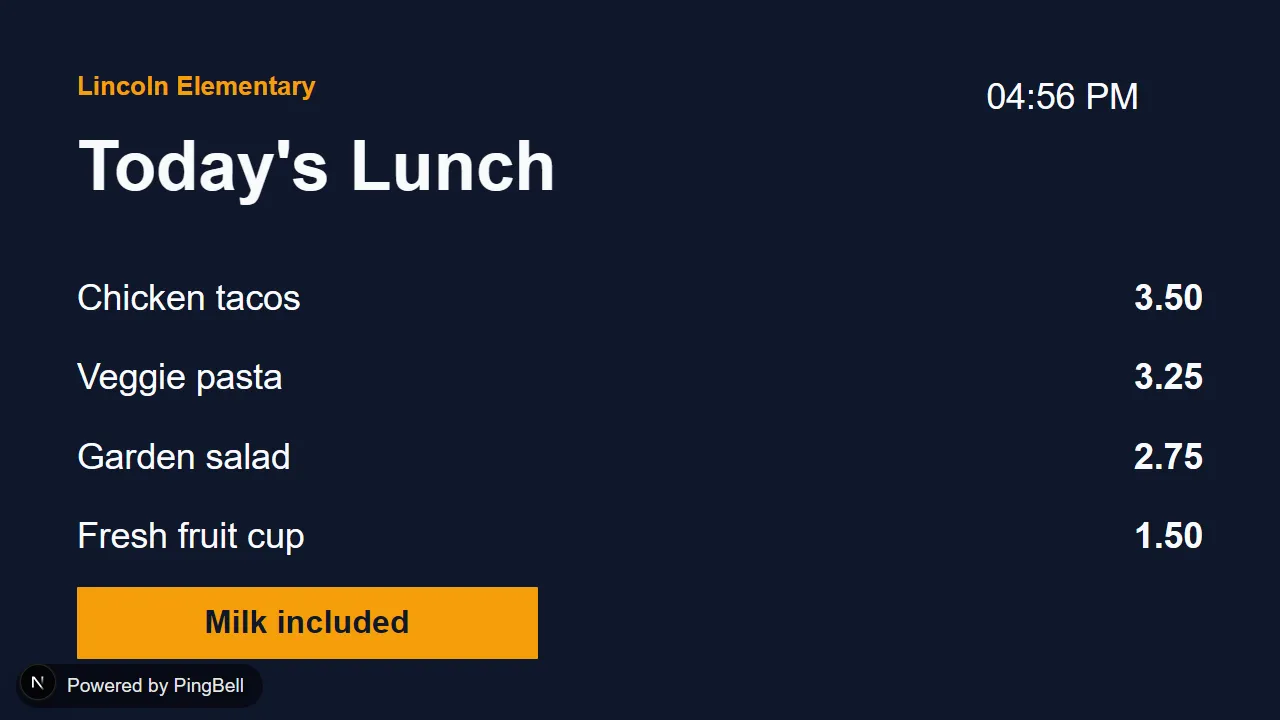
- “Post today’s school lunch: chicken tacos, veggie pasta, salad and a fruit cup”
- “Make a student of the month board for Jordan Lee, fifth grade”
- “Make a teacher of the month board for Ms. Rivera”
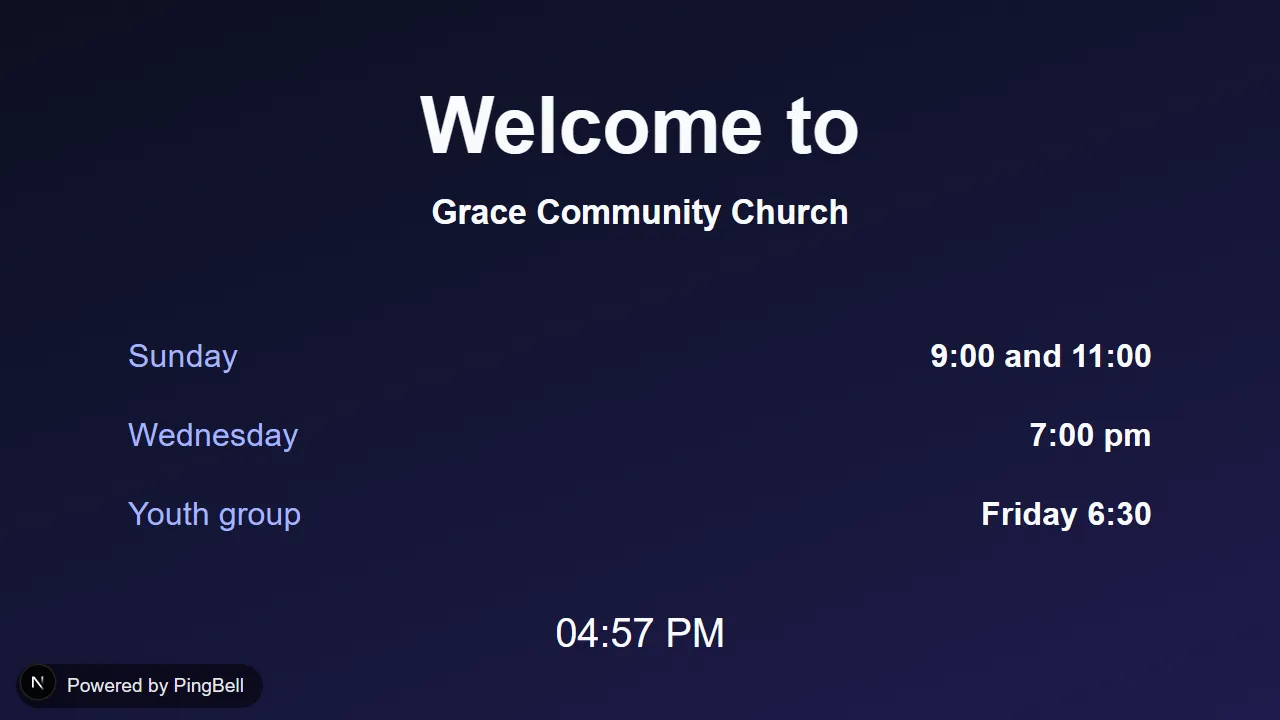
- “Show our church service times in the foyer: Sunday 9 and 11, Wednesday 7”
Holiday and event countdowns
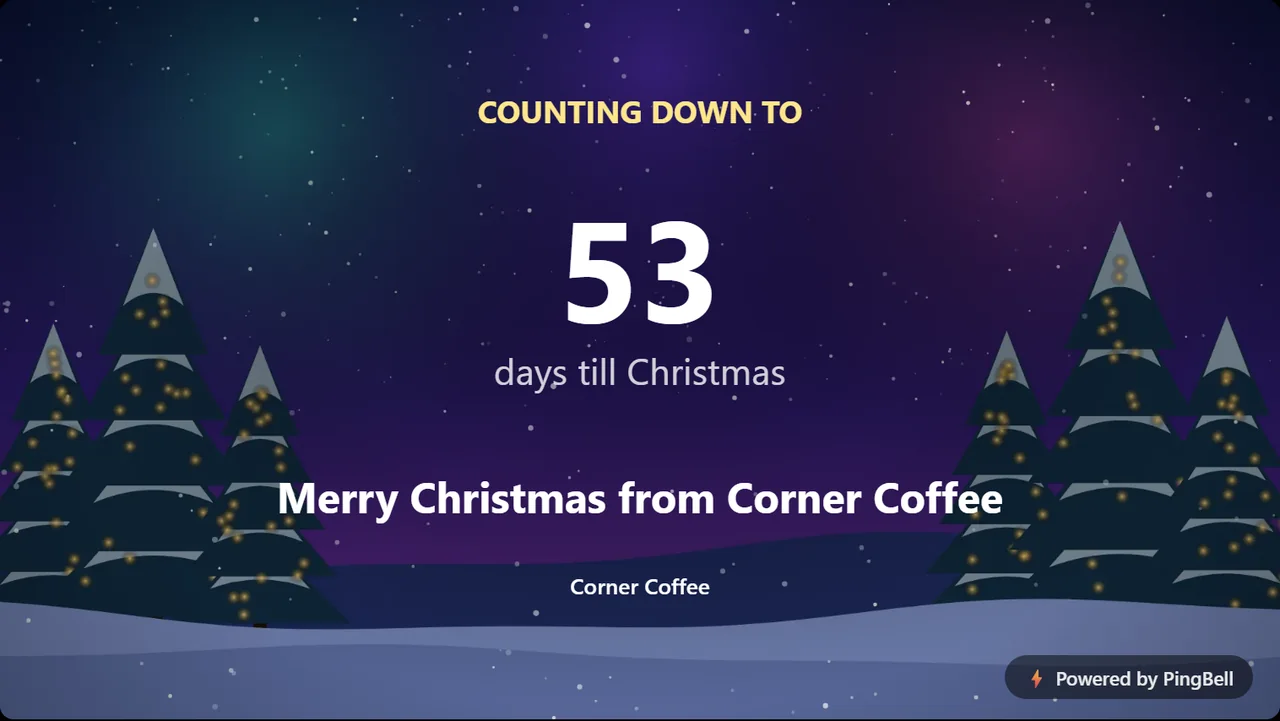
- “Put a Christmas countdown on my TV”
- “Count down to New Year’s Day”
- “Count down to our grand opening on March 1”
Change or remove a board you made
- “Change the message to “Closed Monday””
- “Show it in a different style”
- “My TV shows the code 7KM4PX”
- “Put it on a second TV too”
- “Take it off the TV in the lobby”
- “Give me the code to put it on my website”
- “Delete my board”
Examples of free digital signage boards
Grok picks from ready-made boards and styles and adds your words. Each one comes in several styles, and these are some of them.


What PingBell does in Grok, and what it doesn’t
Ask the assistant for a menu, price list, countdown, schedule, notice or welcome board, then read it the code on the TV: the board appears at once. Free, with no sign-in and no PingBell account.
The assistant makes free boards only. It cannot show live sales, revenue or other connected data: that needs a PingBell workspace. See live sales on a TV.
Questions about PingBell for Grok
- Does PingBell for Grok cost anything?
- No. Boards you make in Grok are free, and every free board carries a small “Powered by PingBell” mark.
- Do I need a PingBell account?
- No. There is nothing to sign in to.
- Is PingBell built into Grok?
- No. You add PingBell to Grok yourself, once, with the address on this page. It takes a minute.
- Can Grok show my live sales on the TV?
- No. The assistant makes free boards only. It cannot show live sales, revenue or other connected data: that needs a PingBell workspace.
- What TVs and screens does PingBell work on?
- Any TV or monitor. Use the free PingBell app on Fire TV, Roku, Apple TV or Android TV, or open my.pingbell.io/pair in any web browser.
- How many TVs can show one board?
- Up to three for each board.
- Can I use my own logo, photos or art?
- Not on these boards: Grok picks from ready-made art and styles. With a free PingBell account you can build one custom board and bring your design from Canva.
- Can I change my board in a new chat?
- Go back to the chat where you made it. That’s where Grok keeps the key to your board, and a new chat may not have it.
- Can I put my board on my website?
- Yes. Ask Grok for the code to embed your board.
- Can Grok take over my TV?
- No. A screen only pairs with the short code it shows, and only someone who can see that screen can read it.
- How do I delete my board?
- Ask Grok to delete your board. It’s permanent and immediate, and your screens go back to a pairing code. We also delete a free board after 30 days with no changes, no screen showing it online and no website showing it.
Put your first board on a TV
Add PingBell to Grok and try “Put a Christmas countdown on my TV.”
Open Grok’s connectorsPingBell also works in ChatGPT, Claude, Gemini and Muse. The full list of what it can do, and how we handle your data, is in the documentation and our privacy policy. Need help? Email [email protected].