
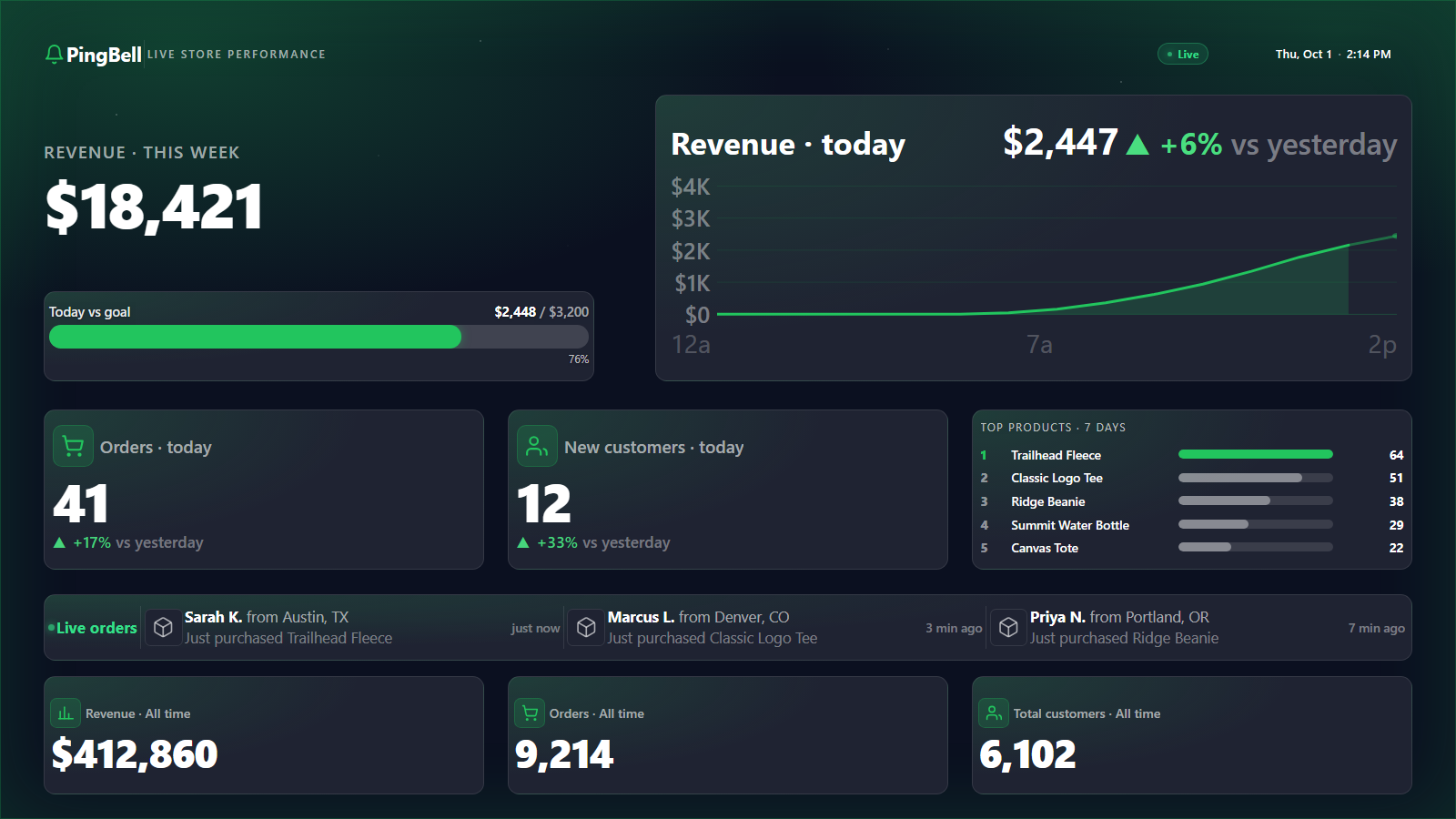
A push notification for every WooCommerce order, on every team phone.
If you run WooCommerce, you already know the WordPress world’s biggest frustration: you’ve stitched together a great store from a dozen plugins, but you still find out about new orders by obsessively refreshing the “Orders” screen. There’s no native push, no sound, and nothing that reaches your team in real time.
PingBell’s WooCommerce plugin fixes that. Install it, connect your store with a short code, and every order fires three things at once: a push notification with a custom sound on every team phone, a live counter that updates on the office TV, and a point on a real-time graph. No code. No webhook wiring. Drop-in WordPress plugin.
Who this is for
- WooCommerce store owners who want to know the moment an order comes in — on their phone, not by refreshing the admin.
- Agencies managing client WooCommerce stores who want to install once and have a real-time dashboard per client.
- Multi-location or multi-seller stores running WooCommerce with a team that needs to see orders across a floor or warehouse.
- WordPress-first businesses (membership sites, nonprofits running donations through Woo, course creators selling through LearnDash) where Woo handles the transaction but the team isn’t always in wp-admin.
How PingBell solves it
Native WordPress plugin. Install from the WordPress plugin directory. Activate. Connect your store with a short code — tick which events should ring the bell and the plugin wires the webhooks by itself. No webhook URLs to configure. No cron to manage.
Push notifications with 70+ built-in sounds. Every order rings the sound of your choice on every team phone, iPhone or Android. Pick a different sound per counter so the team can tell what just happened without looking at the screen.
Live counter on the office TV. Same plugin, zero extra setup. PingBell’s counter runs on any TV — so your office TV becomes a live revenue board without a dedicated computer driving it.
Real-time graph. Every order plots on a time-series. Set a daily goal, see the trend, know at a glance whether today is on pace.
Setup in 5 minutes
- Install the PingBell WooCommerce plugin. Go to your WordPress Admin → Plugins → Add New → search “PingBell”. Click Install, then Activate.
- Connect your store. The plugin sends you to PingBell with a short connect code — sign in (or create a free account), tick which store events should ring the bell, and click Connect store. Your WordPress admin wires the webhooks by itself.
- Pick a sound and write a short notification body. Browse PingBell’s library of 70+ built-in sounds and pick the one that fits.
- Install the PingBell app on every team phone. iOS App Store or Google Play. Each team member signs in and starts hearing the bell.
- Optional: pair the office TV. Install the PingBell TV app — it shows a short pairing code. Enter it on the Screens page at my.pingbell.io (or scan the QR) and cast the board.
Pricing for this use case
Most WooCommerce stores land on the Plus plan at $50/mo (billed annually; $75 month-to-month) — up to 50 paired screens at a flat price, watermark-free displays, and the full board designer. Larger operations, or agencies showing a different client dashboard on every screen: Team at $200/mo (billed annually; $300 month-to-month) with unlimited channels and a team of five.
See the pricing page for the full comparison.
FAQ
How does the WooCommerce plugin connect to PingBell?
It uses WooCommerce’s own webhook system, wired for you: connect your store with the short code, pick the events — new orders (which powers both order count and revenue), completed orders, add-to-carts — and the plugin creates signed webhooks pointing at your PingBell sources. All communication is HTTPS.
Does it work with variable products, subscriptions, and other Woo extensions?
Yes. Anything that creates an order fires the same order events — variable products, WooCommerce Subscriptions renewals, membership purchases — so it’s counted automatically.
Will this slow down my site?
No. WooCommerce delivers the webhooks asynchronously after the order saves, and your customers never touch PingBell’s infrastructure.
Does it work on staging sites?
Yes — but test orders count like real ones. Connect the production store, or archive the staging source when you’re done testing.
Can different events ring different bells?
Yes. Each event you connect becomes its own source with its own sound and celebration message — new orders can ring the cash register while add-to-carts chime softly.
Does it support WooCommerce Memberships / Groups?
Yes. Membership purchase and renewal events fire the same action hooks, so they trigger PingBell identically. You can filter the counter to specific membership tiers.
Can I use it without the WordPress plugin (e.g. via Zapier)?
Yes. We recommend the native plugin for speed and reliability, but Zapier has a “New WooCommerce order” trigger that can POST to a PingBell source’s webhook URL as a fallback.
Get started
Install the PingBell WooCommerce plugin or start a free 7-day trial of PingBell first. Your team will hear the next order before you do.