
Your live sales board, in the corner of every tab.
PingBell for Chrome pairs your browser like a screen and keeps a board in the corner of whatever you are working in — your inbox, your ad manager, a spreadsheet. Every order rings as it happens. No TV needed.
Free on the Chrome Web Store. A paired browser counts as a screen on your PingBell plan.
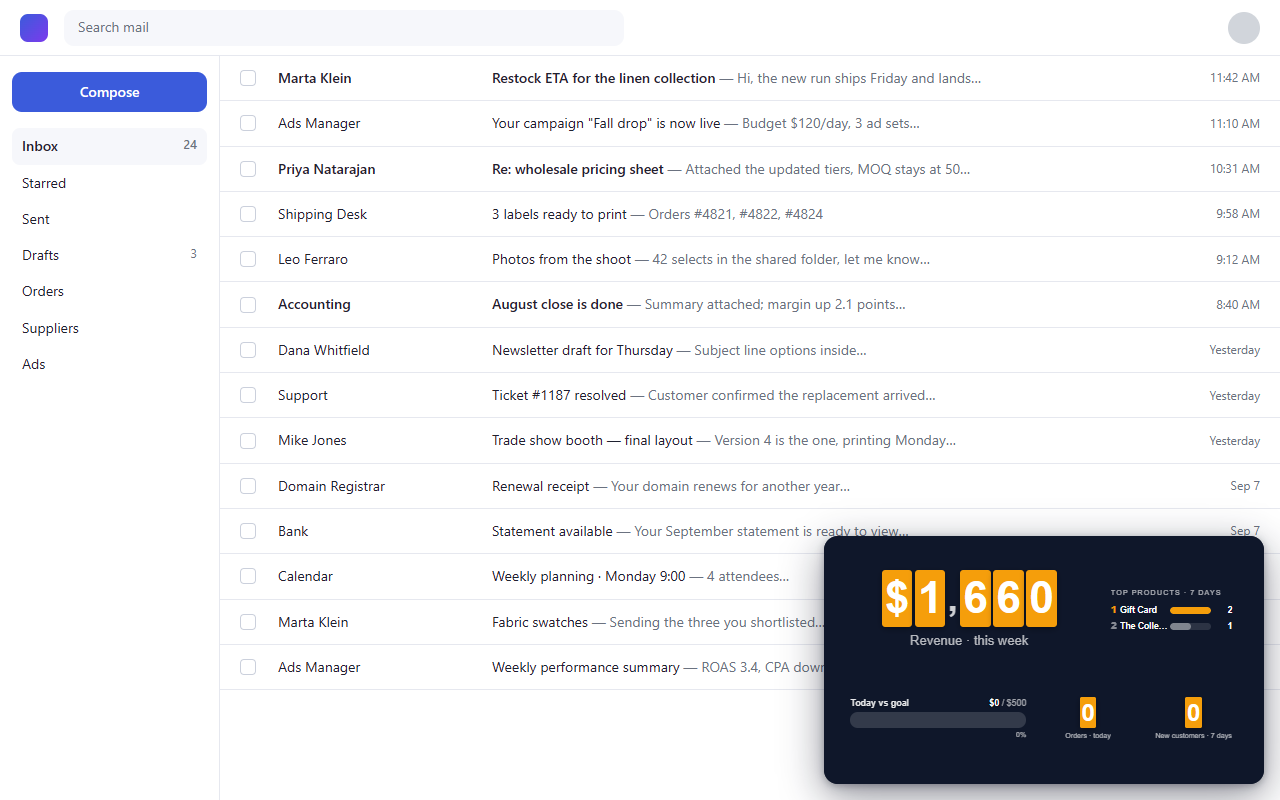
Paired in three steps.
The same pairing every PingBell screen uses — a code on the device, entered once in the app.
- 1
Add it to Chrome
Install PingBell from the Chrome Web Store. It adds one icon to your toolbar and nothing to your pages.
- 2
Copy the pairing code
Click the icon. The popup shows a six-character code — this browser is now a screen waiting to be paired.
- 3
Pair it from PingBell
In PingBell, open Screens, choose Pair a screen, and enter the code. Pick the board you want in the corner. Done.
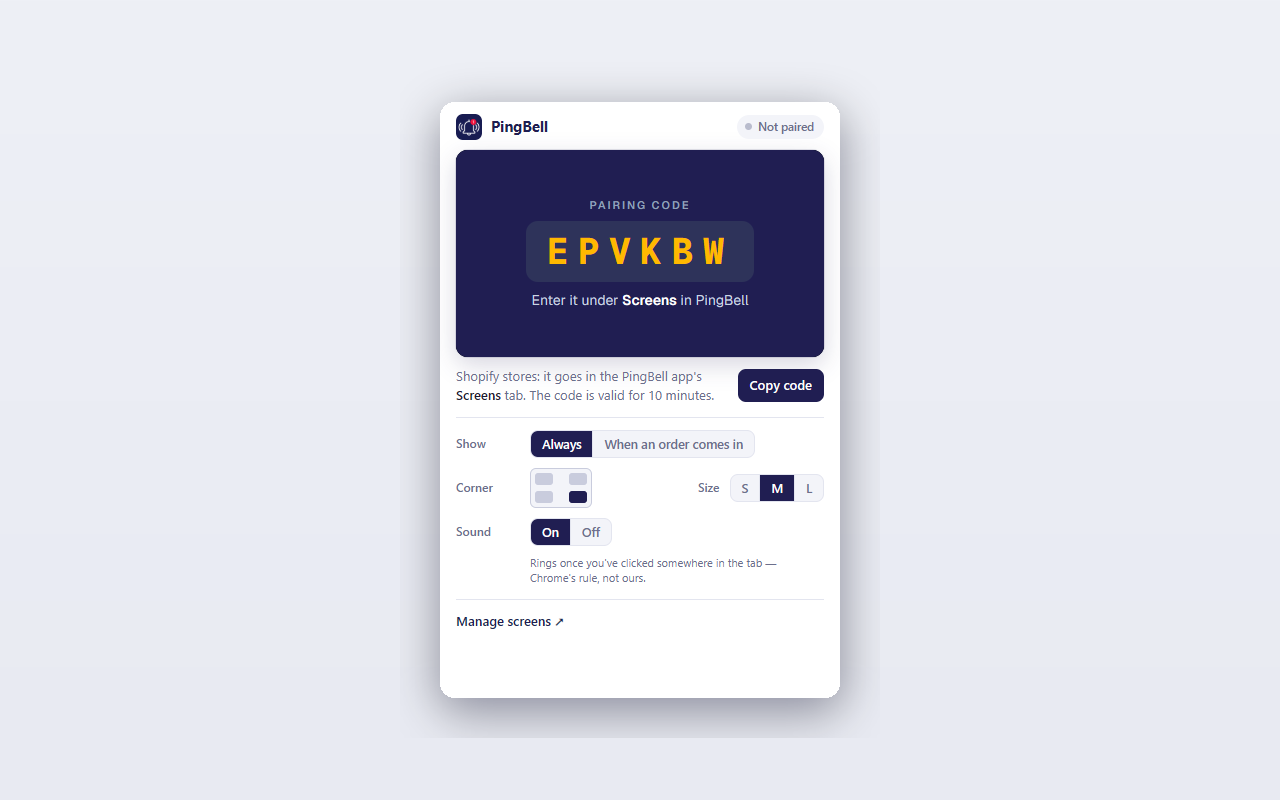
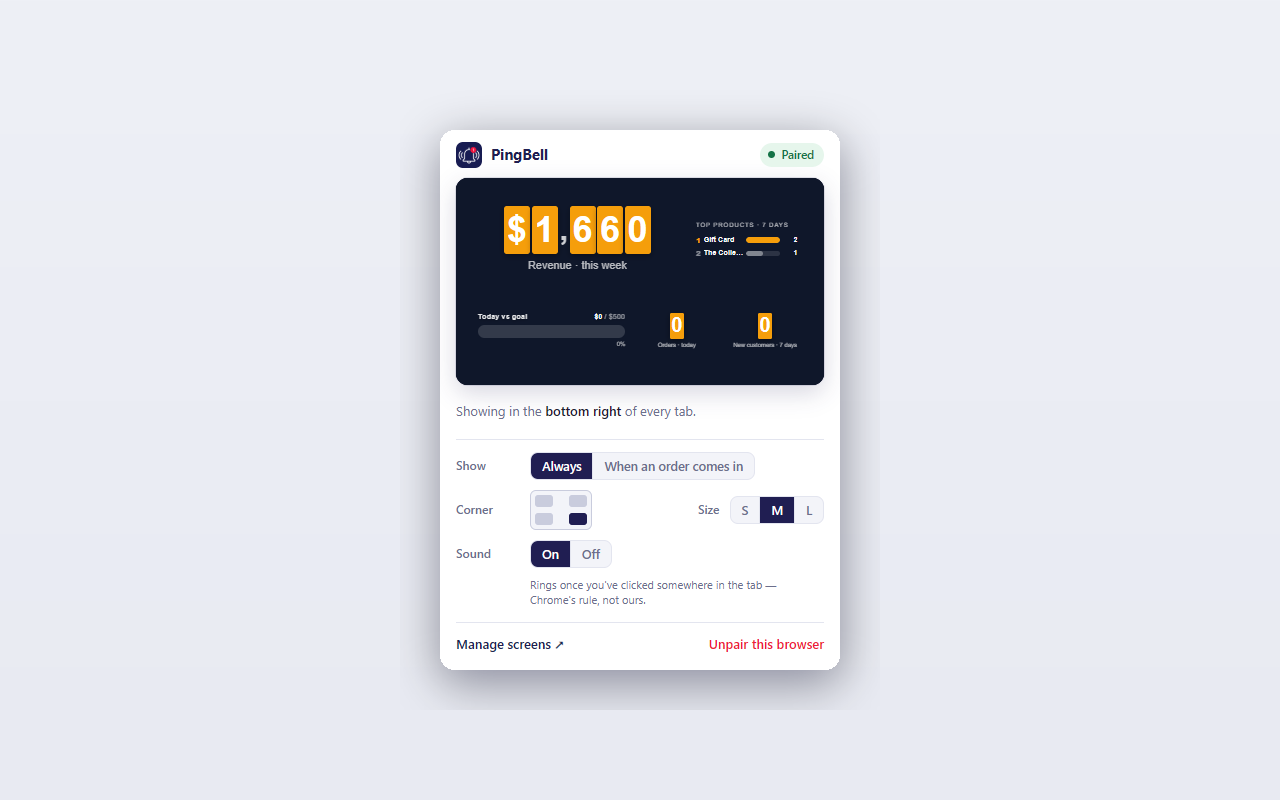
Make it fit the way you work.
Everything is in the popup. Click the icon and choose:
Show
Always — the board stays in the corner. Or only when an order comes in, so it appears on a sale and gets out of the way afterwards.
Hide after
When set to show on orders: 5, 10, 20 or 30 seconds, or a minute.
Corner
Top left, top right, bottom left or bottom right — wherever it is not in the way of what you are doing.
Size
Small, medium or large. Small is a glance; large is a wall.
Sound
On or off. The bell rings in the browser the way it does on a TV.
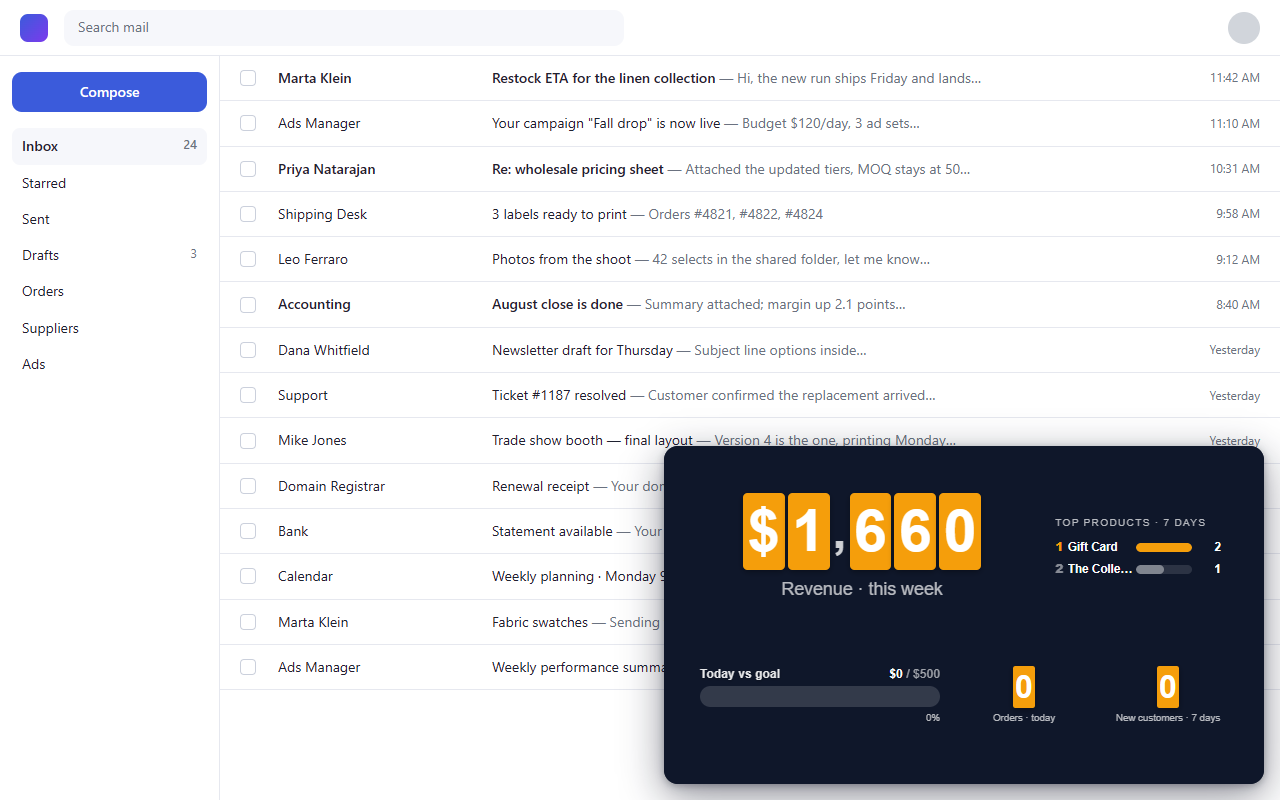
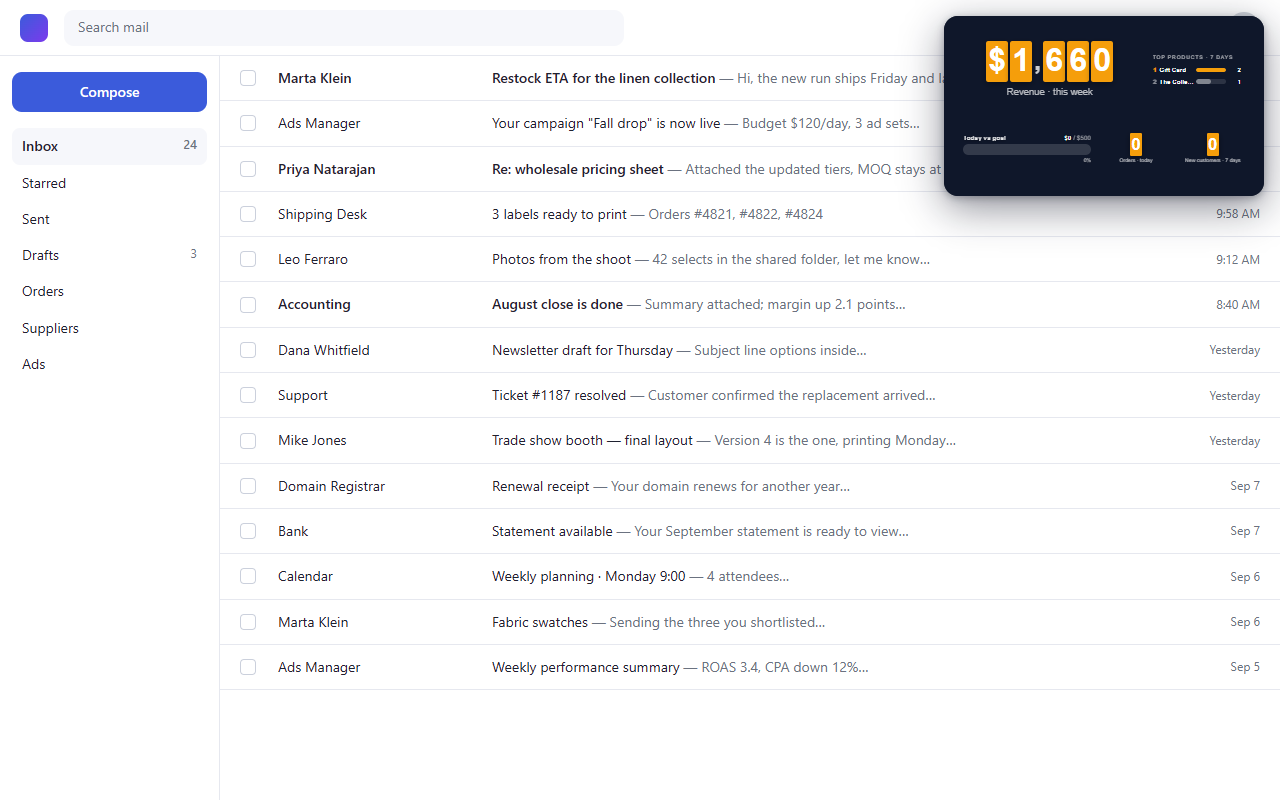
A screen that goes wherever you are working.
Every tab, not one tab
The board follows you — your inbox, your ad manager, a spreadsheet. You never miss a sale because you were somewhere else.
Rings on every order
Works with every PingBell source: Shopify, WooCommerce, Stripe, Wix, Squarespace, Square, QuickBooks, HubSpot, Google Forms, Zapier and webhooks.
Reads nothing from your pages
The extension draws one overlay containing its own page, inside a shadow root. It never reads, collects or sends page content. No analytics.
A screen like any other
A paired browser is a screen on your Screens page — assign it a board, rename it, or unpair it from there, the same as a TV.
Stays paired
Pair once. It keeps its pairing across restarts, and as you move between tabs.
Shopify stores included
Install PingBell from the Shopify App Store, then pair the browser from the app’s Screens tab.
Chrome questions.
Does the extension read what is on my pages? +
No. It appends one element containing an iframe of its own page, inside a shadow root, and reads nothing from the page around it. No page content is collected or sent anywhere, and there are no analytics in the extension. The pairing code and a device key for this browser are stored locally; the board itself is served by my.pingbell.io under PingBell’s privacy policy.
Does it need a plan? +
A paired browser counts as a screen, so it needs a plan that includes screens — Core and up. A free workspace can build the board but cannot put it on a screen.
Can I pair more than one browser? +
Yes. Each browser you pair is its own screen, with its own board and its own settings. A laptop and a desktop are two screens.
Which browsers does it work in? +
Google Chrome, and Chromium browsers that install from the Chrome Web Store, such as Microsoft Edge and Brave.
Why does it ask for access to all sites? +
Because the overlay is shown on whichever tab you are working in — that is the whole feature. Access is used only to draw the overlay; nothing on the page is read.
How do I unpair it? +
Remove the screen from your Screens page in PingBell, or uninstall the extension. Either one ends the pairing.
Put the bell in the corner of your day.
Or on a TV — PingBell runs on every major platform. Pick yours: