
Pairing a TV or any screen
The screen shows a short code — enter it on your Screens page and the board appears seconds later. Works on Roku, Fire TV, Android TV, Apple TV, and any browser.
Before you start
- A PingBell account (free to start)
- At least one board created (a template counts — see creating your first board)
- A TV with one of the supported streaming devices — or any device with a browser
Step 1 — Put the pairing code on the screen
On a TV: install the PingBell app from the device’s app store — Roku, Amazon Fire TV, Android TV / Google TV, or Apple TV — and open it. See the download page for direct links.
On anything else: open my.pingbell.io/pair in the browser — a tablet on a stand, a monitor fed by a mini PC, a projector, anything with a screen and a browser works exactly like a TV app.
Either way, the screen shows a short 6-letter code and a QR code.

Step 2 — Enter the code on your Screens page
On your computer or phone, open Screens in the web app, type the code into the Pair a screen box, and click Pair screen.
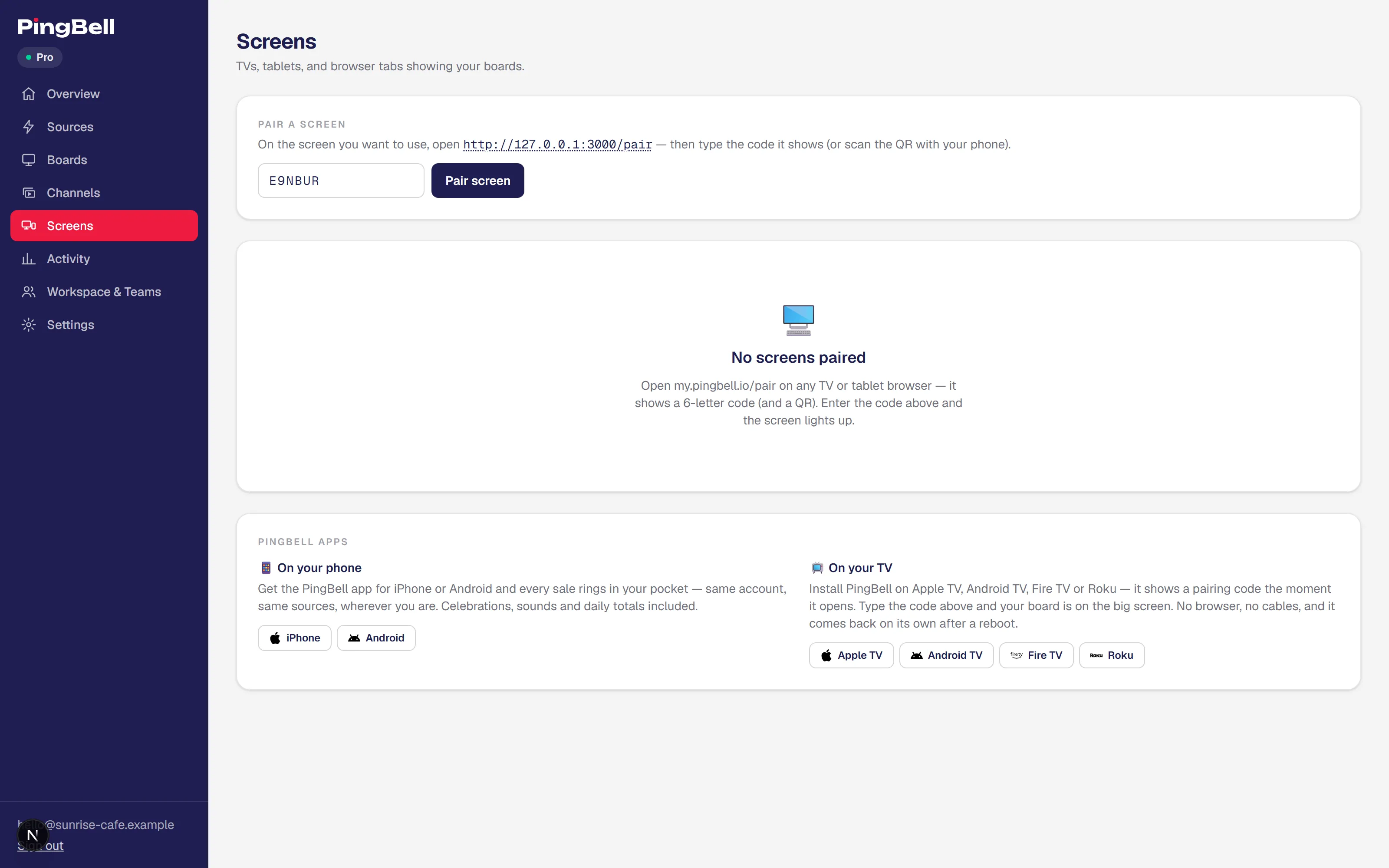
Prefer the QR? Scan it with your phone’s camera — it opens the same pairing step with the code pre-filled. No app needed.
Step 3 — Pick what it shows
The screen pairs instantly and starts showing your first board. On the Screens page, every paired screen has a live preview and a Show… selector — pick any board, or a channel to rotate several boards on a loop.
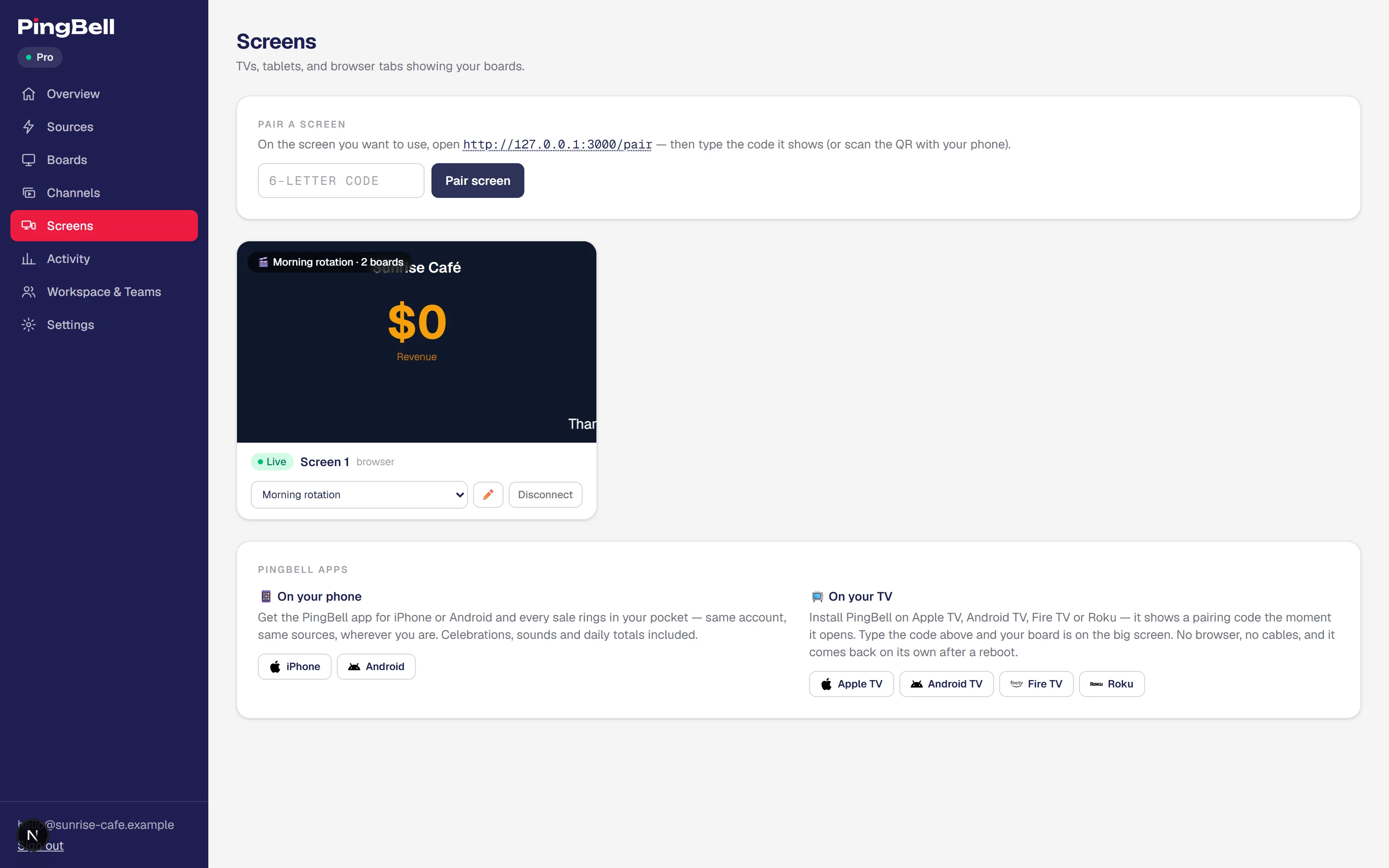
From here everything is remote: rename the screen (“Lobby TV”, “Bar left”), change what it shows, or disconnect it — without touching the TV again. Any edit you make to a board appears on the screen instantly.
Troubleshooting
The code expired
Codes rotate every few minutes for security. The screen always shows a current one — just type whatever it’s showing now.
The screen says it can’t reach PingBell
That’s an internet problem on the screen’s side. Check the TV’s WiFi and restart the app; it retries automatically every few seconds.
Can I change what a paired TV shows?
Yes — Screens → Show… and pick a different board or channel. It switches within seconds, no re-pairing.
Can I un-pair remotely?
Yes. Screens → Disconnect on the screen’s card. The display stops immediately and returns to a fresh pairing code — useful when the TV is at a location you can’t visit.
Is there a limit on screens?
Yes, per plan: Plus pairs up to 50 screens and Team up to 200 — and you are Core and the free tier cast from a browser tab instead, which means a computer has to stay plugged into the TV; pairing a screen that runs on its own is what Plus adds.